
ZipQuantum Engineering ·
Universal Links vs Android App Links: Setup and Testing
A side-by-side implementation and testing guide for Apple Universal Links, Android App Links, association files, signing identities, and common failures.
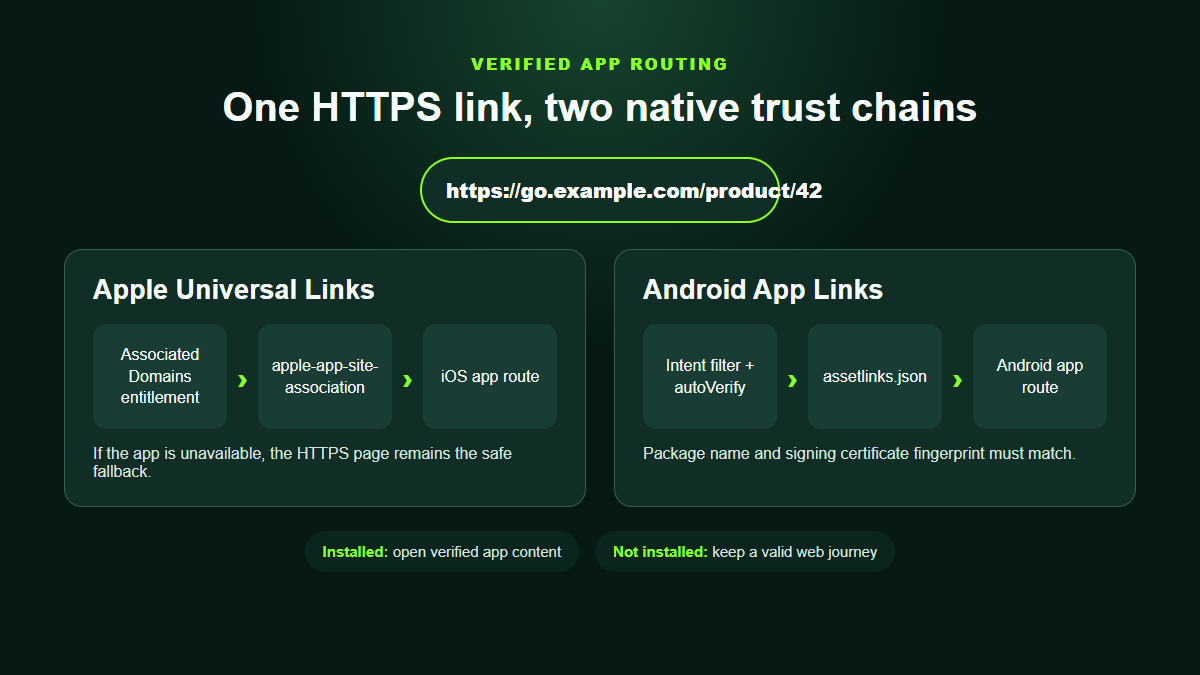
Apple Universal Links and Android App Links solve the same core problem: a normal HTTPS URL can open verified content inside your app when it is installed and remain a valid web URL when it is not. Both mechanisms rely on a two-way association between the application and the website. The configuration details—and the debugging tools—are different.
This guide gives product and engineering teams a practical setup and test plan for both platforms, including the details that most often break production deep links.
Universal Links and App Links at a glance
| Apple Universal Links | Android App Links | |
|---|---|---|
| App declaration | Associated Domains entitlement | HTTPS intent filter with android:autoVerify="true" |
| Website file | apple-app-site-association |
/.well-known/assetlinks.json |
| Application identity | Team ID and bundle ID | Package name and SHA-256 signing fingerprint |
| Primary result | Verified HTTPS links can open the app | Verified HTTPS links can open the app without a chooser |
| Store interruption recovery | Requires a separate explicit deferred handoff | Can use Google Play Install Referrer |
Configure Apple Universal Links
1. Add the Associated Domains entitlement
In Xcode, enable Associated Domains and add one entry for each hostname the app should open:
applinks:links.example.com
applinks:offers.example.com
Do not add https:// or a path. If the app uses multiple subdomains, each hostname needs its own entitlement entry and its own association file.
2. Publish the association file
Serve a file named apple-app-site-association, without a filename extension, from the expected HTTPS location. Its application identifier combines the Apple Team ID and bundle ID. The details array restricts the paths or components the app can handle.
{
  "applinks": {
    "details": [
      {
        "appIDs": ["TEAMID.com.example.app"],
        "components": [
          { "/": "/product/*" },
          { "/": "/invite/*" }
        ]
      }
    ]
  }
}
Replace the placeholders with the production identifiers and match only routes your app is prepared to validate. Serve JSON over HTTPS without an authentication challenge.
3. Handle the URL in the app
Your Swift, SwiftUI, Flutter, or React Native integration receives the verified HTTPS URL and maps it to a known route. Keep a single authoritative routing path so a warm app and a cold app do not process the same URL twice.
Configure Android App Links
1. Declare the HTTPS intent filter
Add an intent filter to the activity responsible for opening links:
<intent-filter android:autoVerify="true">
    <action android:name="android.intent.action.VIEW" />
    <category android:name="android.intent.category.DEFAULT" />
    <category android:name="android.intent.category.BROWSABLE" />
    <data android:scheme="https" android:host="links.example.com" />
</intent-filter>
Keep the manifest scope broad enough for the host association and enforce fine-grained route rules in a controlled layer. Android 15 and later can merge server-side Dynamic App Link rules from the Digital Asset Links file, but older versions still depend on the manifest declaration.
2. Publish assetlinks.json
Serve the file at https://links.example.com/.well-known/assetlinks.json:
[
  {
    "relation": ["delegate_permission/common.handle_all_urls"],
    "target": {
      "namespace": "android_app",
      "package_name": "com.example.app",
      "sha256_cert_fingerprints": [
        "AA:BB:CC:DD:...:11:22"
      ]
    }
  }
]
The fingerprint must match the certificate used on the device. With Play App Signing, the production fingerprint shown by Play Console is normally different from a local upload or debug key.
3. Read and validate the incoming intent
Read the HTTPS URI from the activity intent, normalize the host and path, allow only supported routes, and validate all parameters again before showing protected content.
How to test Universal Links
- Confirm the AASA file is reachable over HTTPS from the exact hostname.
- Install a build containing the matching Associated Domains entitlement.
- Open a test URL from Notes, Mail, Messages, or another external source.
- Test both cold launch and warm-app delivery.
- Test a path that should remain on the web.
- Remove the app and confirm the same HTTPS URL has a useful browser or store fallback.
A tap on a link to the same domain already open in Safari may remain in Safari because the system respects the user’s browsing intent. Test from realistic external placements instead of assuming every tap must force the app.
How to test Android App Links
After installing the app, allow time for verification and inspect the domain state:
adb shell pm set-app-links --package com.example.app 0 all
adb shell pm verify-app-links --re-verify com.example.app
adb shell pm get-app-links com.example.app
A successfully associated host reports a verified state. Then launch a real URL:
adb shell am start \
  -a android.intent.action.VIEW \
  -c android.intent.category.BROWSABLE \
  -d "https://links.example.com/product/42"
On Android 15 and later, server-side association changes can be re-fetched periodically and may take time to propagate. Force verification on a test device, but plan for caching in production.
Frequent verification failures
- Wrong hostname: the app declares
wwwwhile the link uses another subdomain. - Redirected association file: the well-known URL redirects to another host or authentication page.
- Wrong Android certificate: the file contains the upload/debug fingerprint instead of the Play-distributed signing fingerprint.
- Wrong Apple identifier: Team ID, bundle ID, or app entitlement does not match the installed build.
- Overly narrow paths: the association succeeds but the requested route is outside the declared scope.
- Conflicting handlers: multiple activities or navigation listeners process the same link.
- Unsafe routing: arbitrary paths or query parameters are trusted without validation.
Connect the verified hostname to ZipQuantum
Create the ZipQuantum Smart Link on the same managed or custom hostname associated with the app. Configure the primary destination, store information, fallbacks, and accepted parameters. ZipQuantum resolves the server-side link; the verified operating-system association controls installed app opening.
No ZipQuantum mobile app is required to use the SaaS. For a production mobile journey, your own app performs the one-time Universal Link or App Link integration. Optional reference implementations are available for native iOS, native Android, Flutter, and React Native.
Create your first Smart Link, review the platform setup documentation, or use the public ZipQuantum examples.